

You have heard about the technology. You have seen the app options. Now it is time to actually get it on your phone and start using it.
Downloading a phone ultrasound app takes less than five minutes. But getting the most out of it requires knowing a few things that most tutorials skip entirely.
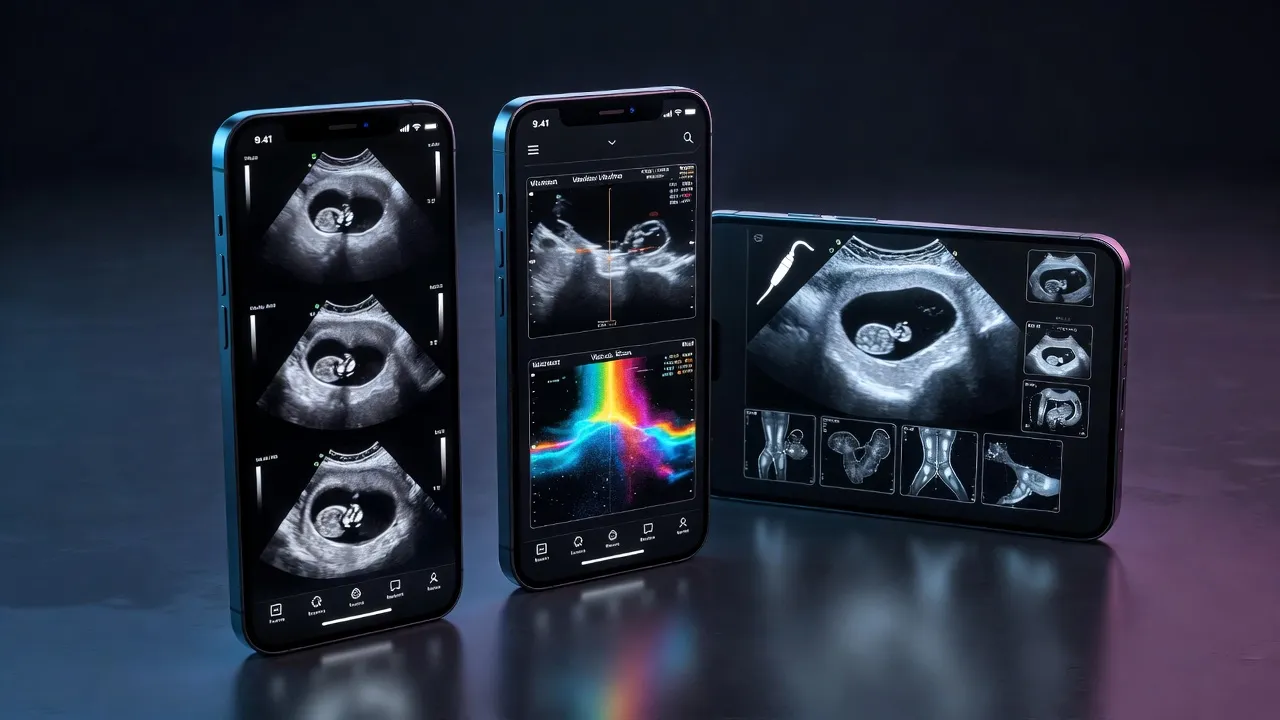
This guide covers everything from the initial download to advanced settings that unlock the full potential of your portable ultrasound system.
Whether you are a seasoned clinician or a medical student exploring this technology for the first time, this article will save you hours of trial and error.
If you have already read our guides on turning your phone into an ultrasound and the best free ultrasound apps available, you have the foundation. Now let us build on it.
Before You Download: Phone Requirements You Need to Check
Not every smartphone can run ultrasound apps smoothly. Before you hit the download button, verify that your device meets these minimum requirements.
For Android Users
- Operating system: Android 10.0 or higher
- RAM: At least 4 GB recommended
- Storage: Minimum 500 MB of free space
- Processor: Qualcomm Snapdragon 660 or equivalent
- Bluetooth: Version 4.2 or higher
- Wi-Fi: 802.11ac support recommended
For iOS Users
- Operating system: iOS 15.0 or higher
- Device: iPhone 8 or later models
- Storage: Minimum 500 MB of free space
- Bluetooth: Version 5.0
- Wi-Fi: 802.11ac support recommended
Why These Specs Matter
Ultrasound apps process real-time imaging data. This demands significant processing power and fast wireless connectivity.
Using the app on an older or underpowered device can result in:
- Laggy or frozen images
- Delayed probe response
- App crashes during scanning
- Poor image resolution
- Failed wireless connections
If your phone does not meet the minimum requirements, consider upgrading before investing in a probe. The software experience is only as good as the hardware running it.
Complete Download Guide: Vscan Air App
The Vscan Air Wireless Ultrasound app is the most widely downloaded free ultrasound app globally. Here is exactly how to get it.
Download on Android
Step 1: Open the Google Play Store on your Android device.
Step 2: Tap the search bar and type “Vscan Air Wireless Ultrasound.”
Step 3: Locate the official app published by GE Healthcare. Verify the publisher name to avoid downloading counterfeit apps.
Step 4: Tap “Install.” The download size is approximately 150 to 200 MB depending on your device.
Step 5: Wait for the installation to complete. A stable Wi-Fi connection is recommended.
Step 6: Tap “Open” to launch the app for the first time.
Download Vscan Air on Google Play
Download on iOS
Step 1: Open the App Store on your iPhone or iPad.
Step 2: Search for “Vscan Air Wireless Ultrasound.”
Step 3: Confirm the publisher is GE Healthcare.
Step 4: Tap “Get” to begin the download.
Step 5: Authenticate with Face ID, Touch ID, or your Apple ID password if prompted.
Step 6: Open the app once installation is complete.
Download Vscan Air on the App Store
First-Time Setup: What Happens After You Open the App
The first launch experience is critical. Here is what to expect and how to navigate each step efficiently.
Account Creation
Most ultrasound apps require you to create a professional account. You will typically need to provide:
- Full name
- Email address
- Professional role (physician, nurse, student, etc.)
- Institution or clinic name
- Country and region
Some apps, particularly the Butterfly iQ, may require verification of your medical license before granting access to full clinical features.
Probe Pairing
If you have a compatible wireless probe, the app will guide you through the pairing process.
General pairing steps:
- Turn on your ultrasound probe
- Ensure Bluetooth and Wi-Fi are enabled on your phone
- Follow the in-app pairing wizard
- The app will detect the probe automatically
- Confirm the connection and wait for the signal strength indicator to stabilize
Pairing typically takes 30 to 60 seconds. Once paired, the probe will automatically reconnect in future sessions.
Initial Calibration
After pairing, some apps run a quick calibration check. This ensures the image display on your specific phone screen is optimized for accurate measurements.
Follow the on-screen prompts. This process takes less than two minutes and only needs to be done once.
Advanced Settings Most Users Never Configure
Here is where the real value lies. These settings are buried in the menus but can dramatically improve your experience.
Image Optimization Settings
- Depth adjustment: Set the default scanning depth for your most common exam type. This saves time during every scan.
- Gain controls: Adjust the overall brightness of ultrasound images. Higher gain brightens the image but can introduce noise.
- Focus zones: Set the focal point to match the depth of the structures you examine most frequently.
- Dynamic range: Controls the contrast between light and dark areas. A wider range shows more subtle tissue differences.
Workflow Settings
- Quick-access presets: Create custom presets for exam types you perform regularly. One tap loads your preferred depth, gain, and focus settings.
- Auto-save: Enable automatic image saving so you never lose a critical capture.
- Annotation templates: Set up pre-written annotations for common findings. This speeds up reporting significantly.
Connectivity Settings
- Preferred connection type: Choose between Wi-Fi Direct and Bluetooth depending on your environment. Wi-Fi Direct offers faster data transfer. Bluetooth provides more stable connections in crowded wireless environments.
- Cloud sync: Enable automatic upload of images and reports to your chosen cloud storage platform.
- DICOM server configuration: If your institution uses a PACS system, configure the DICOM export settings to send images directly from your phone to the hospital network.
Troubleshooting Common Download and Setup Issues
Even the best apps occasionally present challenges. Here are the most common issues and their solutions.
| Problem | Likely Cause | Solution |
|---|---|---|
| App will not download | Insufficient storage | Delete unused apps and files to free up space |
| App crashes on launch | Outdated operating system | Update your phone to the latest OS version |
| Probe not detected | Bluetooth or Wi-Fi disabled | Enable both wireless connections in phone settings |
| Poor image quality | Default gain settings too high | Reduce gain and adjust depth manually |
| Slow image rendering | Low RAM availability | Close background apps before launching the ultrasound app |
| Connection drops during scan | Interference from other devices | Move away from other Bluetooth and Wi-Fi sources |
| Images not saving | Storage full or permissions denied | Check storage space and grant the app file access permissions |
| Cloud sync failing | Weak internet connection | Switch to a stronger Wi-Fi network or use mobile data |
If none of these solutions resolve your issue, contact the app’s official support team. All major ultrasound apps offer dedicated technical support for clinical users.
Comparing the Download and Setup Experience Across Apps
Not all apps provide the same onboarding experience. Here is how the major players compare.
| Aspect | Vscan Air | Butterfly iQ | Clarius |
|---|---|---|---|
| Download Size | 150-200 MB | 250-300 MB | 200-250 MB |
| Account Required | Yes | Yes | Yes |
| License Verification | Optional | Required for clinical use | Optional |
| Probe Pairing Time | 30-60 seconds | 45-90 seconds | 30-60 seconds |
| Initial Calibration | Yes | Yes | No |
| In-App Tutorial | Basic | Comprehensive with AI | Moderate |
| Preset Options | Yes | Yes | Yes |
| Offline Mode | Yes | Limited | Yes |
| Customer Support | Email and phone | In-app chat and email | Email and phone |
The Butterfly iQ app offers the most guided onboarding experience, making it ideal for first-time users. The Vscan Air app provides the fastest setup for experienced professionals who want to get scanning quickly.
Optimizing Your Phone for the Best Ultrasound App Performance
A few simple adjustments to your phone settings can significantly improve your scanning experience.
Screen Brightness: Set your screen brightness to maximum during scans. This ensures you can see subtle details in ultrasound images, especially in brightly lit environments.
Do Not Disturb Mode: Activate this mode before scanning. Incoming calls, notifications, and alerts can interrupt your session and distract from the exam.
Battery Management: Disable battery optimization for the ultrasound app. Some phones throttle performance for apps running in the background, which can cause lag during scans.
Storage Cleanup: Keep at least 2 GB of free storage available at all times. Ultrasound images and video clips can accumulate quickly.
Software Updates: Always run the latest version of both your phone’s operating system and the ultrasound app. Updates frequently include performance improvements and bug fixes.
Graph Description: Setup Completion Time Comparison
Visualize a horizontal bar chart comparing the average setup time for each major ultrasound app.
The vertical axis lists the four apps: Vscan Air, Butterfly iQ, Clarius, and SonoSim.
The horizontal axis represents time in minutes, ranging from 0 to 15.
Vscan Air shows a bar extending to approximately 4 minutes for complete setup including download, account creation, and probe pairing.
Butterfly iQ extends to approximately 8 minutes, reflecting the longer onboarding process with AI tutorial and license verification.
Clarius reaches approximately 5 minutes.
SonoSim, which requires no hardware pairing, shows the shortest bar at approximately 3 minutes.
A note below the chart clarifies that these times assume a stable Wi-Fi connection and a phone that meets all minimum requirements.
This visual comparison helps users set realistic expectations for the setup process and choose the app that best matches their available time and patience.
What to Do After Your App Is Set Up
Congratulations. Your app is downloaded, configured, and connected to your probe.
Now what?
Practice with demo mode first. Before using the device on a real patient, spend time scanning yourself, a colleague, or a training phantom. Familiarize yourself with probe movements, depth adjustments, and image capture controls.
Complete the in-app tutorials. Most apps offer guided tutorials that walk you through common exam protocols. These are worth your time even if you have prior ultrasound experience.
Join the user community. Apps like Butterfly iQ and Clarius have active online communities where users share tips, case studies, and troubleshooting advice. These communities are invaluable resources for accelerating your learning curve.
Start with simple exams. Begin with straightforward assessments like bladder volume checks or basic cardiac views. Build your confidence before attempting more complex scans.
Document your findings. Use the app’s annotation and reporting tools from the very beginning. Developing good documentation habits early will serve you well as your usage increases.
Frequently Asked Questions (FAQ)
How long does it take to download an ultrasound app?
On a standard Wi-Fi connection, most ultrasound apps download in under two minutes. The file sizes range from 150 to 300 MB depending on the app.
Is the download process different for Android and iOS?
The core process is similar. You search for the app in your respective store, tap download, and install it. iOS may require Face ID or password authentication. Android installations are typically one-tap.
Can I download multiple ultrasound apps on the same phone?
Yes. You can install all available ultrasound apps on your phone. However, each app only works with its corresponding brand of hardware probe.
What happens if my phone does not meet the minimum requirements?
The app may still install but will likely perform poorly. You may experience crashes, slow image rendering, or failed probe connections. Upgrading your phone is recommended for a reliable experience.
Do ultrasound apps use a lot of mobile data?
During scanning, data is transferred locally between the probe and your phone via Wi-Fi Direct or Bluetooth. This does not consume mobile data. However, cloud syncing and software updates will use data if you are not on Wi-Fi.
Can I transfer my ultrasound app setup to a new phone?
Yes. Most apps store your account settings in the cloud. When you download the app on a new phone and log in with the same account, your presets, saved images, and configurations will sync automatically.
Are there any subscription fees after downloading?
The basic app downloads are free. Some apps, particularly Butterfly iQ, offer subscription plans that unlock advanced features like AI guidance, expanded cloud storage, and premium educational content. Core scanning functionality is typically included in the free tier.
How often are these apps updated?
Major ultrasound apps release updates every four to eight weeks. Updates often include new features, performance improvements, and security patches. Enable automatic updates to ensure you always have the latest version.
The Journey Does Not End Here
You now have everything you need to download, install, configure, and optimize your phone ultrasound app.
From understanding the technology behind mobile ultrasound to choosing the right app and mastering the setup process, this three-part guide has covered it all.
The tools exist. The apps are free. The probes are more affordable than ever.
The only question left is whether you are ready to take the next step and bring portable ultrasound technology into your daily practice or studies.
The future of medical imaging is not in some distant laboratory. It is already in the palm of your hand.
