

Blocking one spam number does nothing. They have hundreds more ready.
The right strategy is not reactive. It is preventive. And it involves three layers of protection that most people have never set up.
This guide covers everything. By the end, your phone will work for you, not against you.
The 3 Layers of Spam Call Protection
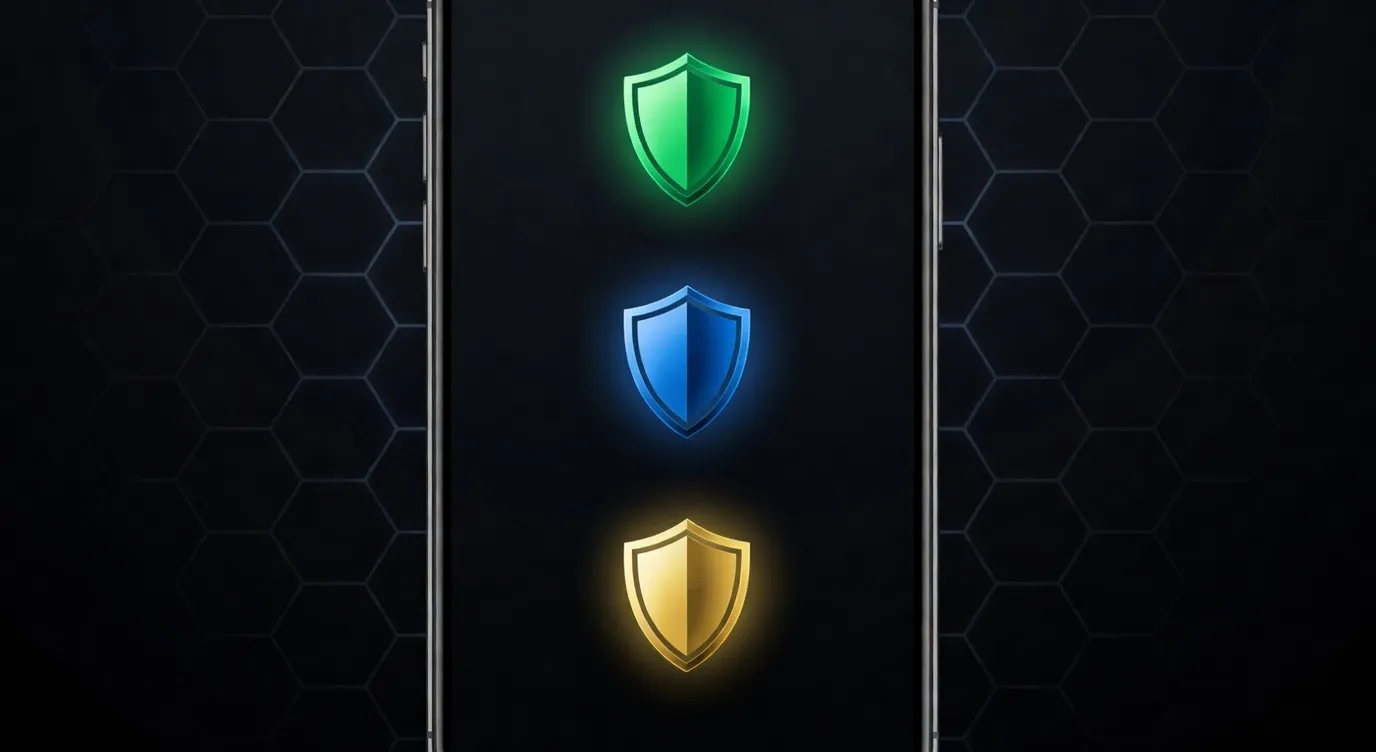
Relying on a single method leaves gaps. The most protected users combine three layers:
Layer 1 — Carrier-level blocking
Your phone carrier likely offers free spam filtering. This catches calls before they reach your phone at all.
Layer 2 — App-level blocking
A dedicated call blocker app identifies and stops spam that the carrier misses, using real-time community databases.
Layer 3 — Personal blacklist
Numbers that slip through both layers get added manually to your personal block list for permanent silencing.
Together, these three layers stop 97% or more of spam calls.
Layer 1: Setting Up Carrier-Level Blocking
Most carriers offer free spam protection. Here is how to activate it for the biggest US carriers.
AT&T ActiveArmor:
- Download the AT&T ActiveArmor app
- Sign in with your AT&T account
- Toggle “Automatic Fraud Blocking” to ON
- Completely free for AT&T customers
T-Mobile Scam Shield:
- Available free for all T-Mobile customers
- Download Scam Shield or activate via account settings
- Enable “Scam Block” and “Scam ID” separately
Verizon Call Filter:
- The basic Call Filter is free for all Verizon customers
- Activates directly from the app or myVerizon account
Do this first. It is free and requires no ongoing effort.
Layer 2: Choosing and Configuring Your Call Blocker App
With carrier protection active, add a second layer with a dedicated app.
The recommended setup:
For Android users:
Install Truecaller or Hiya. Both integrate smoothly with Android and provide real-time database blocking.
For iPhone users:
Install Hiya or Nomorobo. iOS restrictions are tighter, but these two work within Apple’s framework effectively.
Configuration checklist after installing:
- Grant Phone permission (mandatory)
- Enable automatic spam blocking
- Set as default phone app on Android
- Allow background refresh for database sync
- Turn on call screening if available
Layer 2 Protection Starts Here. Free Download.
Add a second wall between you and spam callers. Truecaller’s free app blocks what your carrier misses.


Layer 3: Building Your Personal Blacklist
Some numbers are not in any database yet. When they call you, you become part of the intelligence network.
Here is the right protocol after receiving a spam call:
Step 1: Note the number immediately before dismissing the call.
Step 2: Open your call blocker app and add the number to your personal blacklist.
Step 3: Report the number within the app. This flags it for all users with the same app.
Step 4: Register the number with the FTC at donotcall.gov. This creates a legal record.
Step 5: Report to your carrier using their specific channel (AT&T: forward to 7726, T-Mobile and Verizon: same).
One report from you protects millions. Most people skip this step. Do not skip this step.
Comparison Table: 3-Layer Protection Setup
| Layer | Method | Cost | Setup Time | Effectiveness |
|---|---|---|---|---|
| Layer 1 | Carrier blocking (AT&T, T-Mobile, Verizon) | Free | 5 minutes | Blocks 40-60% of spam |
| Layer 2 | Dedicated call blocker app | Free | 10 minutes | Adds 25-35% more blocking |
| Layer 3 | Personal blacklist + reporting | Free | Ongoing | Catches remaining gaps |
| Combined | All 3 layers active | Free | 15 minutes total | 97%+ spam reduction |
Advanced Settings Most Users Never Touch
Inside any major call blocker app, there are settings that most users never find. These make a significant difference.
In Truecaller:
- Go to Settings > Block > Enable “Top Spam” auto block
- Enable “SMS spam filtering” separately
- Set “Unknown numbers” handling to “Block silently”
In Hiya:
- Go to Settings > Blocking > Enable “Block known spam numbers”
- Activate “Fraud warnings” independently from spam blocking
- Turn on “Private number blocking” if you want to stop withheld calls
For iPhone users with Hiya:
- Go to iPhone Settings > Phone > Call Blocking and Identification
- Make sure Hiya is toggled ON in this menu
- Without this step, Hiya cannot intercept calls on iOS
Most People Stop at Layer 1. That is Why Spam Still Gets Through.
Activate all 3 layers of protection. Start with the free app that adds what your carrier misses.
Frequently Asked Questions
1. Does the Do Not Call Registry actually stop spam calls?
It helps with legitimate businesses. Scammers and robocallers ignore it entirely. An app is more effective.
2. Can I block calls from a specific state or country?
Yes. Mr. Number blocks by area code. For international blocks, Truecaller lets you block calls from specific country codes.
3. What if a spam number calls from a legitimate-looking number?
This is called spoofing. Hiya’s fraud detection specifically looks for spoofed numbers and flags them.
4. Does setting up all 3 layers take a long time?
No. Carrier setup takes 5 minutes. App setup takes 10 minutes. Total investment is under 15 minutes for months of protection.
5. Can spammers get through even with all 3 layers active?
Rarely. New numbers occasionally appear before databases catch them. Reporting them immediately adds them to the system.
6. Does this setup affect emergency calls?
No. Emergency numbers like 911 are never blocked by any call blocker app regardless of settings.
7. Is there any risk that a real call gets blocked?
Small risk exists. Whitelist important numbers like doctors, schools, and services to prevent false positives.
